Quick Start
Install Tonos, connect Ableton Live, and verify your first command.
Download Tonos
Choose the Tonos installer for your computer. Both versions include the app, Remote Script, and VST3 plugin for audio analysis.
Start Free TrialWindows
- 64-bit Windows 10 version 1809 or later, or Windows 11
- Ableton Live 11 or 12, any edition
- Administrator approval for the app and VST3 install
macOS
- macOS 12 Monterey or later
- Ableton Live 11 or 12, any edition
Run the Installer
Windows 10/11
- Save your Live Set and quit every copy of Ableton Live. Setup checks for all Ableton Live* processes and will not replace the Remote Script or VST3 while Live is open.
- Run the downloaded Tonos-Setup file. Approve the Windows administrator prompt after confirming the publisher is samson yeung.
- Keep Install Tonos VST3 plugin and Install Tonos Remote Script selected. The desktop shortcut is optional.
- Click Install. The wizard installs the app, the Ableton control surface, and the audio analyzer together.
- On the completed page, leave Launch Tonos selected if you want to continue immediately. Setup closes before Tonos starts, and first run recognizes the components the installer already provisioned.
macOS
Open the DMG, launch Tonos, and follow the Setup tab to detect Ableton and install the Remote Script and VST3 plugin.
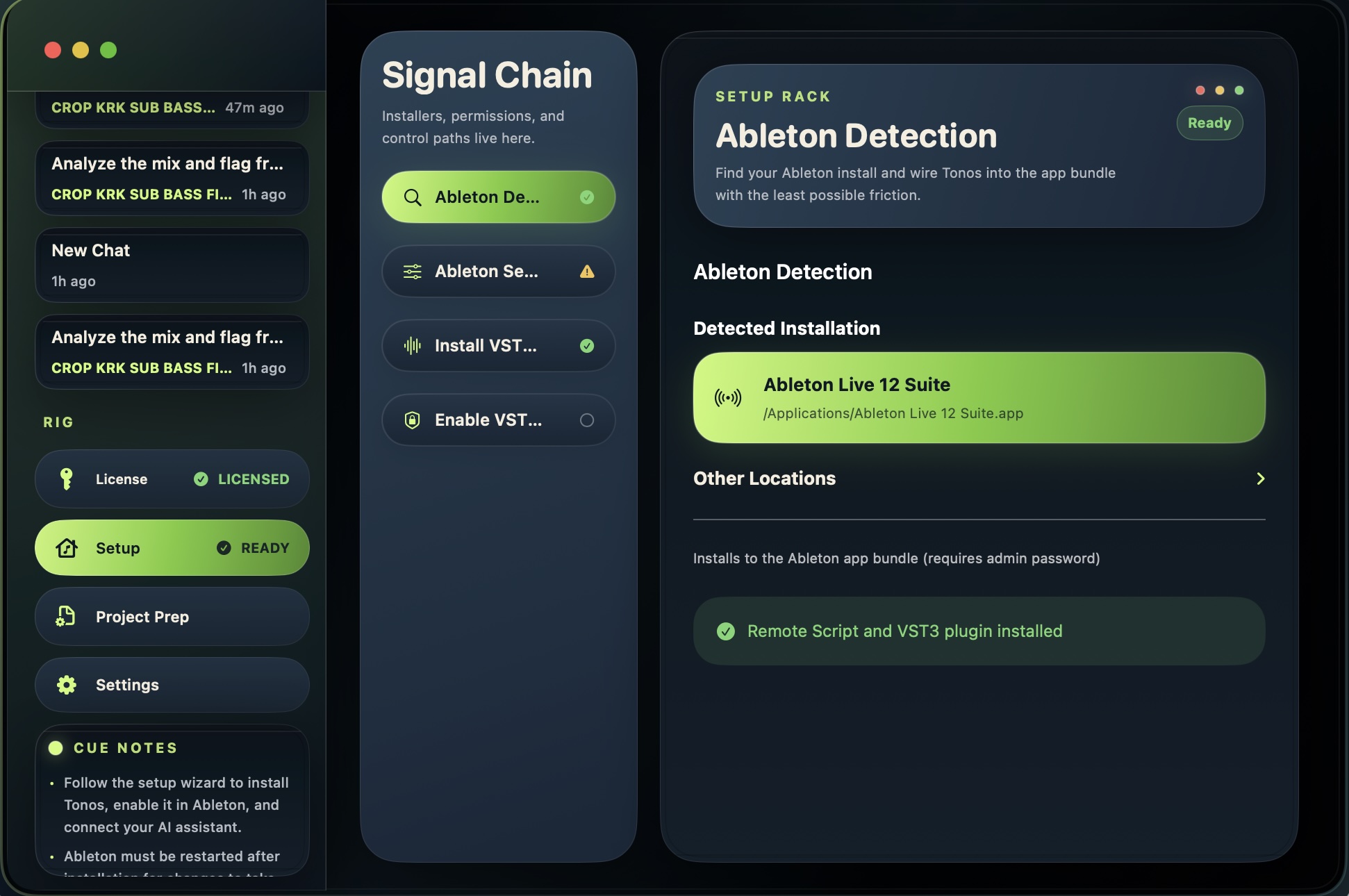
The Tonos Setup pane remains available after installation. Use it to refresh component status or reinstall either component after an update.
Activate Your License
After purchasing Tonos (or starting a 14-day free trial), you'll be redirected back to the app automatically. You can also paste your license key in the License tab.
View active machines and hosted guidance status anytime at license.tonos.music/account.
Configure Ableton Live
Windows 10/11
- Start Ableton Live after Tonos Setup finishes. If Live was open at any point during installation, quit and reopen it so it rescans control surfaces.
- Open Options → Settings in Live 12 or Options → Preferences in Live 11. You can also press Ctrl+,.
- Choose Plug-Ins, turn on Use VST3 Plug-In System Folders, and click Rescan if Tonos is not visible yet.
- Choose Tempo & MIDI in Live 12 or Link / Tempo / MIDI in Live 11. In an empty Control Surface row, select Tonos.
- Leave the Tonos MIDI Input and Output set to None. Tonos communicates locally and does not need a MIDI port.
macOS
Restart Live after setup, enable the VST3 system folder under Plug-Ins, then choose Tonos in an empty Control Surface row under Tempo & MIDI or Link / Tempo / MIDI. Leave Input and Output set to None.
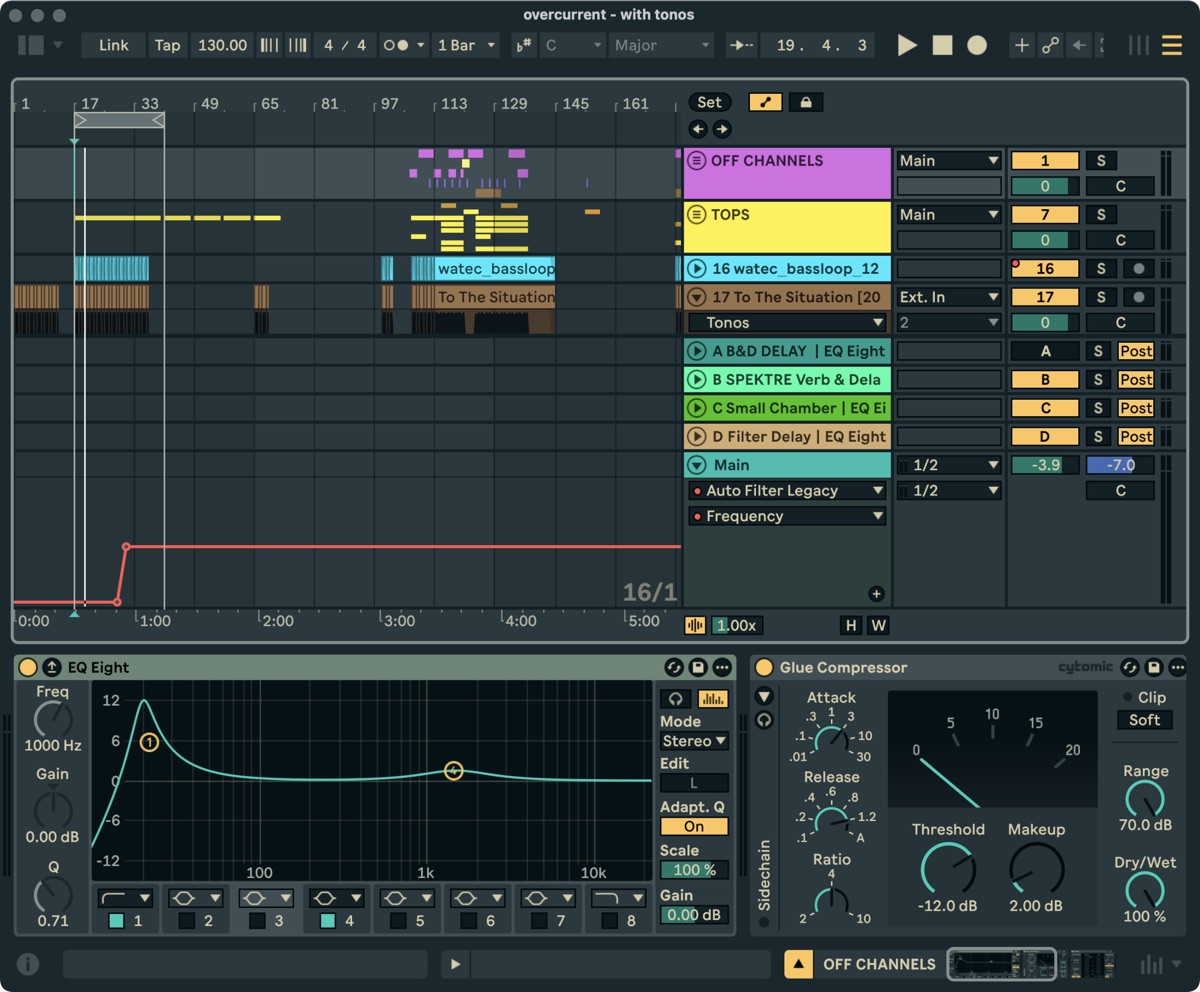
Tonos connects automatically after Live loads the Remote Script. You only need to select the Control Surface once.
Start Producing
Startup order matters
- Start Ableton Live first and wait for your project to fully load
- Then open Tonos and start chatting
Tonos connects to Ableton's Remote Script on startup. If Ableton isn't running yet, Tonos stays disconnected until Live and the Remote Script are available.
Open Tonos and start chatting. The built-in navigator has access to 100+ tools for controlling your Ableton session. Try prompts like:
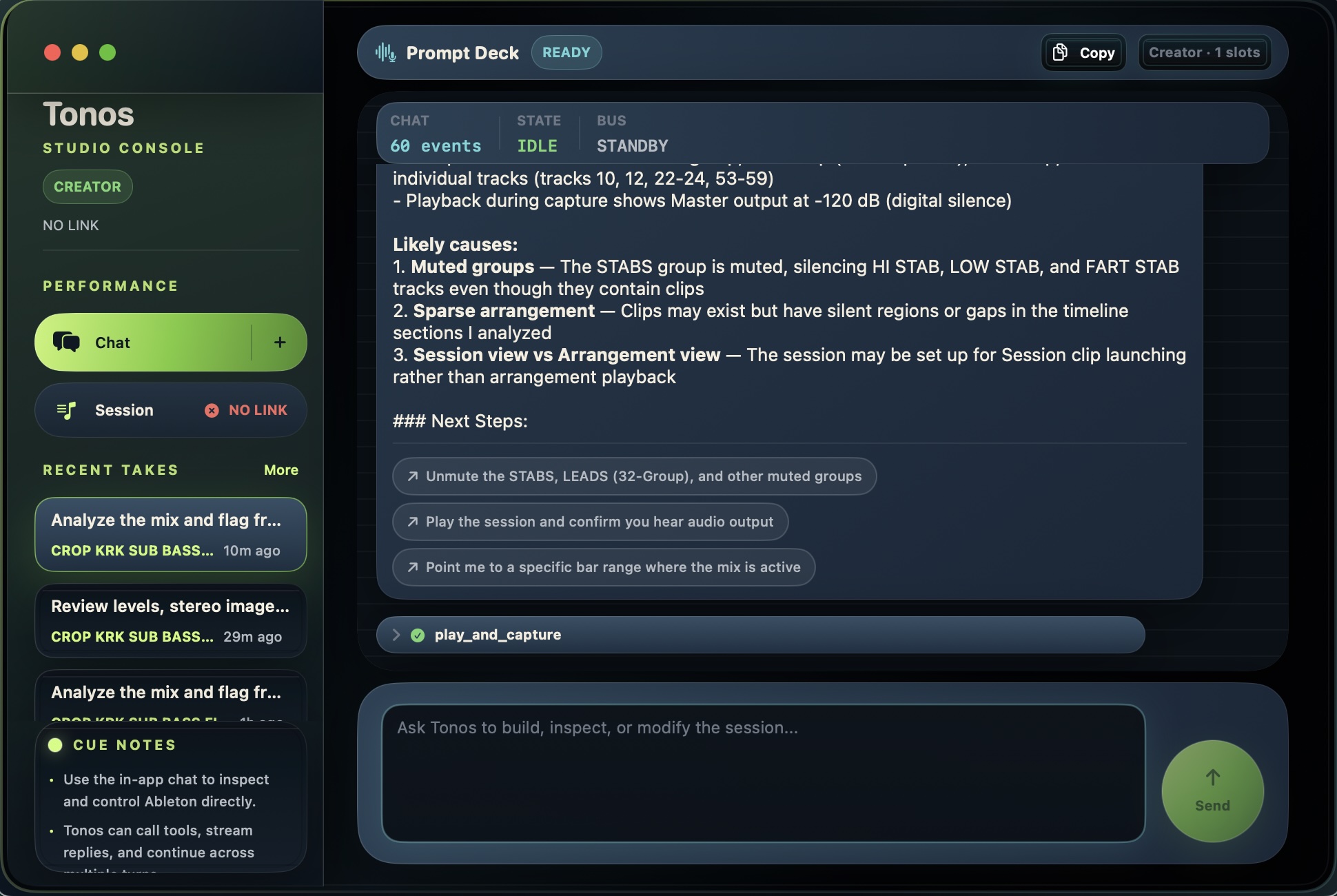
Verify Your Setup
Once Ableton is running with Tonos enabled, open the Tonos app and check the connection status:
1. Check the status indicator
2. Ask Tonos
3. Try a simple command
The Tonos Device
Tonos includes an audio plugin that you add to tracks in Ableton. It captures the audio signal, runs an FFT analysis, and sends the spectrum data back to the Tonos app in real time. This is what powers features like frequency analysis, mix collision detection, and band-level feedback.
Adding it to a track
- Open the device browser in Ableton (the sidebar on the left)
- Open Plug-Ins → VST3 or search for Tonos
- Drag it onto any track you want Tonos to analyze
- Repeat for each track you want included in spectrum analysis
The plugin is lightweight: it doesn't alter your audio. It sits at the end of the device chain and listens passively, sending 128-bin FFT snapshots over UDP to the Tonos app. You can add it to as many tracks as you like.
No Max for Live required
The Tonos plugin works with every edition of Ableton Live: Intro, Standard, and Suite. Unlike many analysis tools, it doesn't depend on Max for Live.
About the VST3 format
Tonos ships as a VST3 plugin, the modern standard for audio plugins on macOS and Windows. Ableton Live has built-in VST3 support, so no separate plugin host is required. On Windows, Setup installs it at C:\Program Files\Common Files\VST3\Tonos.vst3. Keep Live's VST3 system folder enabled and rescan after an update if needed.
Windows reference
What Setup Installs
Tonos app
C:\Program Files\Tonos
Ableton Remote Script
%USERPROFILE%\Documents\Ableton\User Library\Remote Scripts\Tonos\__init__.py
VST3 analyzer
C:\Program Files\Common Files\VST3\Tonos.vst3
Tonos settings and debug log
%APPDATA%\tonos\config.json
%APPDATA%\tonos\tonos-debug.log
Check the installation in PowerShell
These commands only check files and local ports; they do not change your system.
Remote Script installed
VST3 binary installed
Remote Script listening
The first two commands should return True. With Live running and Tonos selected as a Control Surface, at least one of the port checks should return True.
Updating components later
Save your Set and quit every Ableton Live process before using the installer or Tonos Setup pane. In Tonos, open Setup, click Refresh, then Install or Update. Windows may request administrator approval again for the VST3.
Troubleshooting
Windows installer will not continue
- Quit Ableton Live completely. Save your Set, close Live, and check Task Manager for any remaining Ableton Live process. Setup intentionally blocks component changes while Live is running.
- Run Setup again. Keep both the Remote Script and VST3 components selected, approve the administrator prompt, and confirm the publisher is samson yeung.
- If Remote Script is disabled, initialize Live first. Open Live once, let it finish starting, quit it completely, and rerun Setup.
Tonos not showing in Control Surface list
- Check your Ableton version. Tonos requires Ableton Live 11 or later. It does not support Ableton 10.
- Refresh and update Tonos components. Quit Ableton completely, open the Tonos Setup tab, click Refresh, then click Update or Install for anything that is out of date.
- Check the Windows script path. Confirm this file exists: %USERPROFILE%\Documents\Ableton\User Library\Remote Scripts\Tonos\__init__.py.
- Check for Python errors. If the Remote Script has a syntax error, Ableton silently hides it. See Finding Diagnostic Logs below for Ableton and Tonos log paths.
- Delete __pycache__. If a previous install had errors, stale bytecode can prevent loading. Delete the __pycache__ folder inside the Tonos Remote Script directory, then restart Ableton.
- Manually select it. Go to Settings or Preferences → Tempo & MIDI or Link / Tempo / MIDI and choose Tonos from the Control Surface dropdown. Leave Input and Output set to None.
Tonos VST3 is missing on Windows
- Enable VST3 system folders. Open Options → Settings or Preferences → Plug-Ins, turn on Use VST3 Plug-In System Folders, then click Rescan.
- Check the installed plugin. Confirm C:\Program Files\Common Files\VST3\Tonos.vst3 exists.
- Reinstall with Live closed. Quit every Live process, open Tonos Setup, click Refresh, then Install or Update beside the VST3 component. Approve the Windows administrator prompt.
- Restart Live. Live scans the system VST3 folder during startup. Search under Plug-Ins → VST3 after it reopens.
Tonos can't control Ableton
- Is Tonos connected? On Windows, Tonos should display Ableton's tempo, meter, and track counts in its status bar. On macOS, the connection indicator should be green.
- Is the license active? Check the License tab in Tonos. A valid license or active trial is required.
- Restart Tonos. Quit and reopen Tonos. It will reconnect to Ableton automatically.
Why does Tonos ask for Screen Recording permissions on macOS?
Only on Ableton Live 11, and only during setup. Live 11 draws its Preferences window with a custom toolkit that exposes no controls to macOS accessibility: there is nothing for Tonos to click. So Tonos reads that one window on screen, recognizes the labels (“Use VST3 Plug-In System Folders”, the Control Surface table), and clicks where they actually are. macOS gates any on-screen reading behind the Screen Recording permission.
- Live 12 never asks. Its Settings window exposes proper accessibility controls, so setup drives it directly.
- Only Ableton's own windows are read. Its Preferences window and its dropdown menus. Not your desktop, not your browser, not any other app.
- Nothing is stored or sent. Frames are turned into text in memory and discarded. No screenshot is written to disk or uploaded.
- Setup only. Once Tonos is enabled in Live 11, the app has no reason to capture again. You can revoke the permission afterwards.
To grant it: System Settings → Privacy & Security → Screen & System Audio Recording. Turn on Tonos, then quit and reopen Tonos. macOS only applies this permission after a relaunch. Prefer not to grant it? Choose Set Up Manually Instead in the wizard and flip the two Live 11 settings yourself.
Tonos can't connect to Ableton
- Is Ableton running? Ableton must be open with a project loaded before Tonos can connect.
- Is Tonos enabled? Check Settings or Preferences → Link, Tempo & MIDI. Tonos should be listed as an active Control Surface.
- Check ports 9780 through 9782. In Windows PowerShell, run 9780..9782 | ForEach-Object { Test-NetConnection 127.0.0.1 -Port $_ -InformationLevel Quiet }. At least one result should be True. If all three are False, Live's Remote Script is not listening.
- Restart in the right order. Start Ableton first, wait for your project to fully load, then restart Tonos.
No spectrum data appears
- Add the Tonos plugin. Enable Live's VST3 system folder, rescan, then load the Tonos VST3 analyzer on every track you want included in mix analysis.
- Play the section. Tonos needs audio to pass through the analyzer before it can report spectrum or loudness data.
- Refresh analysis. Run setup again or restart Tonos if the plugin is loaded but the status still shows no analyzer data.
License activation issues
Check the License tab in Tonos to see your license state. You can also view recent machines and hosted guidance status at license.tonos.music/account. Contact support@tonos.music if you need help.
Finding Diagnostic Logs
Ableton's log records Remote Script startup messages and Python errors. Tonos keeps a separate app log for connection and installer diagnostics.
Windows
Ableton Live
Tonos
Read the latest entries in PowerShell:
macOS
Useful entries include Remote Script startup, the selected local port, and Python errors that prevented Live from listing Tonos.
Ready to get started?